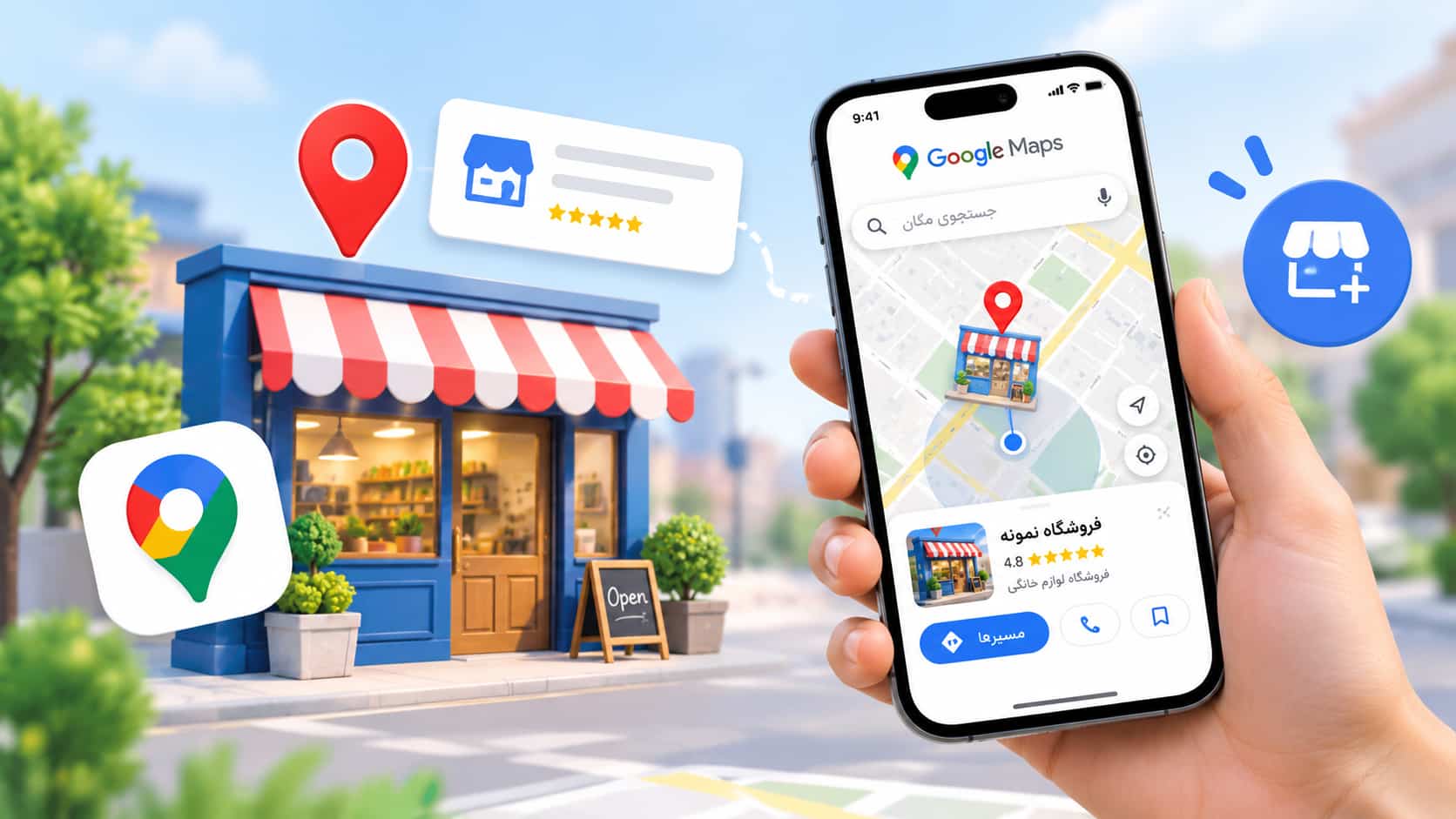
When someone nearby looks for "the nearest repair shop", "a bakery" or any business like yours, the first thing they check is the map. If your shop isn't on it, as far as that customer is concerned, it doesn't exist.
The good news is that adding your shop to Google Maps is free and can be done from the phone in your hand. This step-by-step guide covers how, what helps a listing get approved and seen, and why local map apps matter too.
Before you start, have these ready
- Your exact business name: the one on your shop sign.
- Your full address, and exactly where on the street you are.
- A phone number that gets answered.
- Opening hours for every day of the week.
- A few real photos: the outside with your sign, the inside and your products.
- Your website or social page, if you have one.
It's best to do this standing in front of your shop, so the pin lands in exactly the right place.
Two ways to get on Google Maps
- Add a missing place: anyone can add a place that isn't on the map yet. Your shop becomes visible, but you don't manage the listing.
- Google Business Profile: you claim the place and manage its details, photos and replies to reviews yourself. This requires verifying that you own the business.
In some countries — Iran among them — ownership verification may not be available. If that applies to you, don't worry: the first method still puts your shop on the map.
Method 1: add a place from your phone, step by step
- Open the Google Maps app and make sure it's up to date.
- Go to the Contribute tab in the bottom bar.
- Tap Add place.
- Enter the business name, its category (for example "Bakery" or "Mobile phone repair shop") and the address.
- Drag the pin to exactly your shop's entrance, not the middle of the street.
- Add your phone number, opening hours and website.
- Upload your photos and submit.
Google then reviews the details, which can take anywhere from a few days to a few weeks. Menu names and positions vary a little between app versions and languages; if you can't find an option, look in your profile menu or long-press on the map.
Method 2: Google Business Profile
- In Google Maps, tap your profile picture and choose the business option (such as "Add your business"). You can also start from business.google.com in a browser.
- Enter your business details as in method 1.
- Verify ownership: Google offers one of several verification methods (such as a phone call, text, email or a short video of your shop). Which ones you get is up to Google.
Once verified, you can post updates, manage photos and reply to reviews.
Tips for approval and visibility
- Write the name exactly as it is on your sign. Adding promotional words like "Best Bakery in Town" breaks Google's rules and can get the listing rejected.
- Pick the right category; Google uses it to decide which searches to show you for.
- Keep your hours up to date, especially on holidays. Nothing is worse than a customer at a locked door.
- Use real photos, and add fresh ones from time to time.
- Ask happy customers to leave a review, and reply politely to every review, good or bad. Never buy or fake reviews: it's against the rules, and customers usually notice.
- Keep your details identical everywhere: name, address and phone should match on Google, other map apps, your website and your social pages.
Why do listings get rejected?
- Extra or promotional words in the name
- The pin in the wrong place
- A duplicate — the shop is already listed (search first; you may only need to correct its details)
- An address customers can't actually visit
Don't forget local map apps
Google isn't the only map people use. In Iran, for example, most people navigate with Neshan and Balad, and both let you add a place for free. Wherever you are, find out which map apps your local customers rely on and list your shop there too — with the same details everywhere.
The map finds you; your website sells
Being on the map helps customers find you and walk through your door. But many of them look up your prices, products or past work before they come. A website link on your map listing lets them decide right there — and if you sell online, buy without visiting at all.
If you don't have a website yet, read a website for your Instagram shop, or, if you're in Takestan, web design in Takestan.
Frequently asked questions
Does it cost anything?
No. Adding a place and creating a Google Business Profile are both free.
How long until my shop shows up?
It depends on Google's review — usually a few days to a few weeks.
I don't have a shop; I work online or from home. Can I still be listed?
"Add a place" is for locations customers can visit, so don't list a made-up address or a home address you don't receive customers at. Google Business Profile lets businesses that travel to their customers hide their address and set a service area instead.
My shop is already listed, but the details are wrong. What should I do?
Open the place on the map and tap Suggest an edit. Enter the correct details for Google to review.
Summary
Adding your shop to Google Maps is free, simple and done from your phone — and it's one of the most effective things you can do to be found locally. Accurate details, real photos and customer reviews help you show up more. And don't forget the map apps your local customers actually use.
At Bambo Web, based in Takestan, Qazvin, we build custom websites and online stores. If you'd like the customers who find you on the map to become buyers, ask us for a consultation.